
If you use WordPress or are just starting to explore it, you’ve probably heard of plugins—but maybe you’re not quite sure what they are or how to use them. Don’t worry, I’m here to guide you!
As someone who has been building WordPress sites for over 15 years, I can tell you that plugins are one of the platform’s greatest strengths. They allow you to easily add new features to your site without writing a single line of code. And when I say easily, I mean it—plugins are accessible to everyone, even beginners.
In this article, I’ll simply explain what a WordPress plugin is, what it can do, and most importantly, how to install one in just a few clicks. The goal is to help you customize your site to match your vision and needs—without getting bogged down in technical details.
3 Methods to Install a WordPress Plugin
| Method | Required Skill Level | Main Steps | When to Use It? |
|---|---|---|---|
| From the WordPress Dashboard | Beginner | Go to Plugins > Add New Search for the plugin Install and activate | For all free plugins from the official directory |
| By Uploading a ZIP File | Intermediate | Download the plugin ZIP file Go to Plugins > Add New > Upload Install and activate | For premium plugins or ones provided by third-party developers |
| Via FTP | Advanced | Download and unzip the plugin Connect via FTP Upload to /wp-content/plugins/ Activate from the dashboard | When the installation fails or for large plugins |
Detect WordPress themes and plugins of any website for free in under 30 seconds
What is a WordPress Plugin?
Definition
A WordPress plugin (called an “extension” in French) is a small piece of software that you add to your site to provide new features—without needing to touch the site’s source code. It can be installed in just a few clicks, much like an app on your smartphone.
In other words, a plugin acts like a component you attach to the core of WordPress to customize and adapt it to your specific needs.
How Does a Plugin Work?
WordPress is a CMS (Content Management System) designed to be lightweight and highly extensible. By default, it offers the essential tools to build a site or blog. Plugins allow you to add more specific features: contact forms, online stores, newsletters, photo galleries, enhanced security, SEO tools, and more.
Technically speaking, a plugin is a file or group of files written in PHP that interact with the WordPress core through “hooks” to modify or extend the site’s behavior.
Plugin vs. Theme: What’s the Difference?
Themes and plugins are often confused, but they serve very different purposes:
- The theme controls the visual appearance of the site (design, colors, layout).
- The plugin adds or enhances functionality (search engine, SEO, forms, backups, etc.).
Think of it this way: the theme is the look, the plugin is the engine.
And the good news is—they work perfectly together.
Examples of Popular WordPress Plugins
Here are some widely used plugins in the WordPress community:
- WooCommerce – Turns your site into a full-featured e-commerce store.
- Yoast SEO or Rank Math – Improves your site’s search engine optimization.
- Elementor – A drag-and-drop visual page builder.
- WP Rocket – Optimizes your site’s loading speed.
- Contact Form 7 or WPForms – Allows you to create contact forms.
- Wordfence – Enhances your website’s security.
- Polylang or Weglot – Makes your site multilingual.
All of these plugins have millions of active installations—clear proof of their usefulness and reliability.
How to Install a WordPress Plugin
There are three main ways to install a WordPress plugin. The easiest is directly from the WordPress dashboard, but depending on the type of plugin or technical constraints, you may need to install it using a ZIP file or an FTP client.
Method 1 – From the WordPress Dashboard (The Easiest)
This is the most accessible method for most users and is ideal for installing free plugins from the official WordPress directory.
Steps to Follow:
- Log in to your WordPress dashboard.
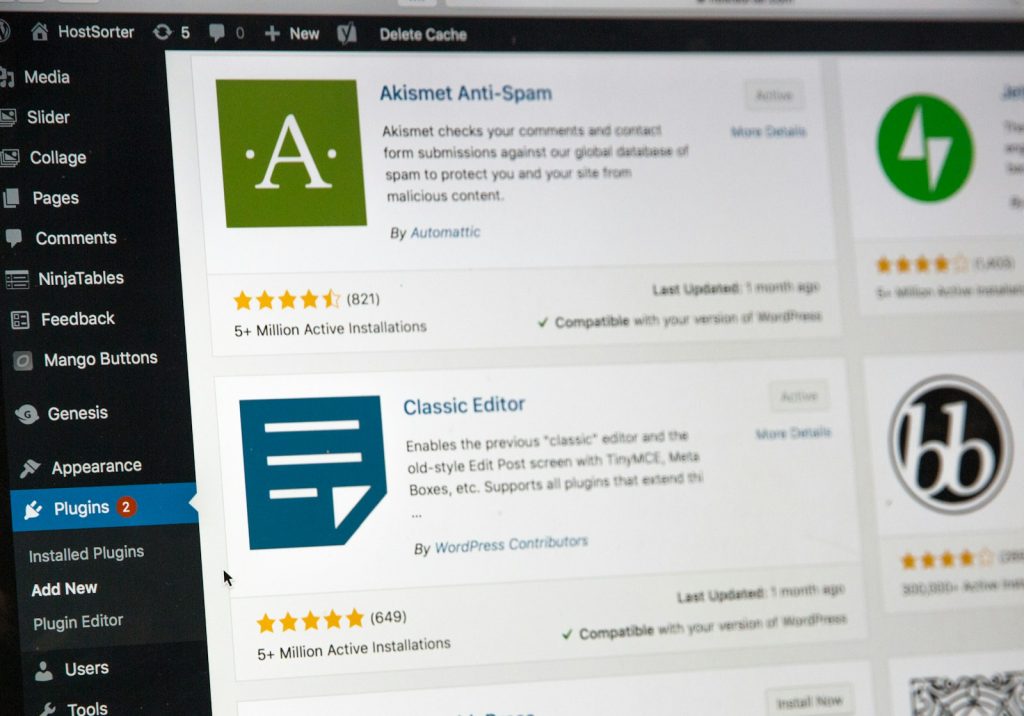
- In the left-hand menu, click on Plugins > Add New.
- In the search bar, type the name of the plugin you want to install (e.g., “Yoast SEO”).
- Once you find the plugin, click Install Now.
- After installation, click Activate.
Your plugin is now ready to use!
How to Choose a Reliable Plugin:
Before installing a plugin, take a moment to check:
- The number of active installations (the more, the better).
- The average rating and user reviews.
- How frequently it’s updated (avoid abandoned plugins).
- Compatibility with your WordPress version.
This helps you avoid bugs, security issues, or conflicts with other site elements.
Method 2 – Uploading a ZIP File (For Premium or Third-Party Plugins)
Some plugins aren’t available in the official WordPress directory—especially premium (paid) plugins or those from third-party developers. These are usually provided as a .zip file.
Where to Find Premium Plugins:
- CodeCanyon (well-known marketplace)
- Official developer websites (e.g., WP Rocket, Weglot, Astra Pro)
- Plugin/theme libraries (e.g., Elegant Themes, Crocoblock)
Avoid downloading pirated (“nulled”) plugins—they often contain malware or malicious code.
Steps to Install via ZIP:
- Download the plugin’s ZIP file from the provider’s site.
- Log in to WordPress, then go to Plugins > Add New.
- At the top, click Upload Plugin.
- Select the ZIP file from your computer and click Install Now.
- Once installed, click Activate.
This method is just as simple and allows you to install more advanced or specific plugins.
Method 3 – Via FTP (Advanced Method)
FTP (File Transfer Protocol) installation is a manual method used in special cases:
- The plugin is too large to install via the WordPress interface.
- You encounter an error during the standard installation.
- You’re a developer or advanced site manager.
Steps to Install a Plugin via FTP:
- Download and extract the plugin folder on your computer.
- Connect to your server using an FTP client (e.g., FileZilla).
- Navigate to:
/wp-content/plugins/ - Upload (drag and drop) the plugin folder into this directory.
- Once the upload is complete, return to your WordPress dashboard > Plugins.
- The plugin should appear in the list—click Activate.
Tip: Always back up your site before making changes via FTP, just in case.
Which Method Should You Choose?
| Method | Required Skill Level | When to Use It |
|---|---|---|
| From the Dashboard | Beginner | For all free plugins from the official directory |
| ZIP File Upload | Intermediate | For premium plugins or those provided by third-party developers |
| Via FTP (Manual) | Advanced | When there’s an error, for large plugins, or due to server configuration issues |
Detect WordPress themes and plugins of any website for free in under 30 seconds
Why Use a WordPress Plugin?
One of WordPress’s greatest strengths is its flexibility. Thanks to plugins, you can turn a simple brochure-style site into an online store, a membership area, a portfolio, or even a booking platform—without writing a single line of code.
Let’s take a closer look at why plugins have become essential to any well-built WordPress site.
Easily Add New Features
Imagine you want to:
- Add a contact form,
- Improve your site’s SEO,
- Offer a booking system for your services,
- Or create a dynamic image gallery…
No need to hire a developer or build these features from scratch. You simply install the right plugin, configure it, and your site is ready to go. With just a few clicks, you can significantly enhance the user experience.
No Technical Skills Required
This is one of WordPress’s biggest advantages: you don’t need to know how to code to manage or customize your site.
Plugins are designed to be beginner-friendly—with intuitive interfaces, built-in tutorials, and simple settings.
Many plugins even offer setup wizards or pre-configured options to help you get started faster.
Adaptable to Any Need: From Blog to E-Commerce
Whatever type of web project you have, there are plugins to suit your needs:
- Blog: social sharing, newsletters, comment management, SEO tools
- Showcase site: appointment booking, quote forms, portfolios, animations
- E-commerce: WooCommerce for product management, payments, shipping, etc.
- Multilingual sites: Polylang, WPML, or Weglot to automatically translate your content
- Community or nonprofit sites: BuddyPress, forums, member sign-ups
With plugins, WordPress becomes a fully customizable, tailor-made tool for your project.
A Wide Range of Free and Premium Plugins
The official WordPress directory offers over 60,000 free plugins, all available directly from your dashboard.
But there’s also a large selection of premium (paid) plugins—usually more feature-rich, better supported, and offering advanced functionality.
You can find these plugins:
- On marketplaces like CodeCanyon
- Directly from developer websites (e.g., WP Rocket, Rank Math Pro, Elementor Pro)
- Or as freemium plugins—free versions with optional paid upgrades (e.g., WPForms, SEOPress, Astra, etc.)
The advantage? You choose based on your budget, your goals, and your level of expertise.
Best Practices After Installing a WordPress Plugin
Installing a WordPress plugin is great—but using it wisely is even better. Poor plugin management can slow down your site, cause conflicts, or even create security risks.
Here are the essential best practices to follow every time you install a plugin:
| Best Practice | Why It’s Important |
|---|---|
| Configure the plugin | To ensure it works correctly from the start |
| Keep it updated | For security and compatibility with WordPress |
| Delete unused plugins | To reduce vulnerabilities and keep your site light |
| Check site performance | To maintain a fast and smooth experience |
| Back up before installation | To avoid surprises if something goes wrong |
Configure the Plugin Immediately After Installation
Once your plugin is installed and activated, don’t stop there. Most plugins need initial setup to function properly.
- Some offer a quick-start wizard.
- Others require API keys (for external services).
- Many involve basic settings like SEO options, security rules, or caching preferences.
Take a few minutes to explore the settings, read the documentation, or watch a short tutorial video. This small effort can save you a lot of trouble later.
Update Regularly (Security & Compatibility)
Updates aren’t just about new features—they’re crucial for:
- Fixing security vulnerabilities
- Ensuring compatibility with the latest WordPress version
- Resolving bugs and plugin/theme conflicts
An outdated plugin can become a backdoor for hackers. Regularly check for updates via Plugins > Installed Plugins.
Tip: Enable auto-updates for trusted plugins.
Delete Unused Plugins
Deactivating a plugin isn’t enough. Even when inactive, a plugin:
- Can still pose a security risk if left unmaintained
- Takes up space on your hosting
- Clutters your admin dashboard
If you’re not using a plugin anymore, delete it completely. It keeps your site lighter, safer, and more organized.
Monitor the Impact on Site Performance
Not all plugins are optimized the same way—some can slow down your site or conflict with others.
After installing a new plugin:
- Test performance with tools like GTmetrix, PageSpeed Insights, or Query Monitor
- Watch for issues like slow load times, display bugs, or incompatibilities
Pro Tip: Install plugins one at a time, so if something breaks, you’ll know what caused it.
Back Up Your Site Before Installing Anything New
Before installing a new plugin (especially one from outside the official directory), always make a full backup of your site—files + database.
Why? Because if a plugin causes a crash or conflict, you’ll be able to restore everything in one click, as if nothing happened.
Plugins like UpdraftPlus, All-in-One WP Migration, or WPVivid Backup make this process easy and automatic.
Detect WordPress themes and plugins of any website for free in under 30 seconds
Common Mistakes to Avoid with WordPress Plugins
Plugins are powerful tools, but if misused, they can quickly become a bottleneck for performance or even a security vulnerability for your site.
Here are common mistakes you should absolutely avoid when using plugins on WordPress.
| Mistake | Associated Risk |
|---|---|
| Too many plugins | Slow site, conflicts, server overload |
| Ignoring reviews & updates | Incompatibilities, security vulnerabilities |
| Using unreliable sources | Viruses, hacking, data loss |
| No compatibility checks | Malfunctions, visual bugs |
Installing Too Many Plugins (and Slowing Down Your Site)
It’s tempting to add a plugin for every little feature, but beware: too many plugins kill performance.
Even though WordPress can handle many, each plugin:
- Slows down page loading (especially on the front end)
- Can generate unnecessary requests
- May conflict with other plugins
Tip: Only install plugins you really need, and prefer those that bundle multiple features.
Neglecting User Reviews and Updates
Before installing a plugin, check its reputation carefully:
- Is it regularly updated?
- Is it compatible with your current WordPress version?
- Does it have positive user feedback?
- How many active installations does it have?
An unmaintained plugin can have security holes or stop working properly with new WordPress versions.
Tip: Choose plugins with recent updates and ratings above 4 stars.
Installing from Unreliable Sources
Downloading a plugin from a suspicious site or unofficial forum can have serious consequences:
- Malicious files (malware, backdoors, etc.)
- Data theft
- Site blacklisting by Google or your hosting provider
This often happens with pirated (“nulled”) plugins, which are usually free but dangerous.
Not Testing Compatibility with Your Theme or Other Plugins
Every plugin uses its own scripts and functions. Sometimes plugins conflict with each other or with your WordPress theme, causing:
- Display bugs
- Features that stop working
- PHP errors or white screens
To avoid this:
- Test new plugins on a staging or local version of your site first.
- Always make a full backup before important installations.
- Verify compatibility with your theme or page builder (like Elementor, Divi, etc.).
Detect WordPress themes and plugins of any website for free in under 30 seconds
FAQ – Everything You Need to Know About WordPress Plugins
How many plugins can you install without slowing down a site?
There’s no official limit, but it’s more about the quality of the plugins than the quantity. A site can run smoothly with 30 well-optimized plugins and become slow with only 5 poorly coded or resource-heavy ones.
What matters most is to:
- Install only what you really need,
- Avoid redundant plugins,
- Test the performance impact after each addition.
What’s the difference between free and premium plugins?
Free plugins are available from the official WordPress repository. They cover many basic needs and are often well maintained.
Premium (paid) plugins typically offer:
- More advanced features,
- Priority customer support,
- More frequent updates,
- Better integration with other tools.
There are also freemium plugins, which provide a limited free version plus a more complete Pro version.
Can a plugin “break” a site?
Yes, unfortunately. A poorly developed or incompatible plugin can:
- Cause visual bugs,
- Create conflicts with other plugins or the theme,
- In extreme cases, cause a fatal error (white screen).
That’s why it’s essential to:
- Back up your site before installing anything new,
- Install plugins one at a time,
- Test plugins in a staging or pre-production environment whenever possible.


